Set Up the Connector in Claude
This guide is for team members who want to write and edit tutorials on this site by chatting with Claude. You get a personal connector URL from the site owner's Telegram bot, add it to your Claude account once, and then ask Claude for what you need, such as "write a tutorial on webhooks".
It takes about five minutes.
Video demo
Watch the whole flow in just over a minute: requesting access on Telegram, adding the connector in claude.ai, testing it, publishing a tutorial that goes live on this site by itself, and adding a photo to it. Captions are in English and Malay.
The names, chat ID and URL in the video are examples.
Before you start
You need:
- A Claude account that can add custom connectors, at claude.ai.
- Telegram, to request access from the site's bot, @ArifDocsAgentic_bot.
Step 1: Request access on Telegram
-
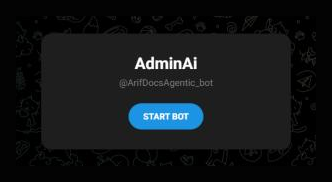
Open @ArifDocsAgentic_bot in Telegram and press Start. On a computer, the link opens Telegram Desktop or Telegram Web.
-
Send:
/access -
The bot replies that your request has been sent to the owner.
The owner gets a message with your name and a ready-made approval command. As soon as they approve, the bot sends you a message containing your personal connector URL. It looks like this:
https://docs-publisher.example.ts.net/mcp/3f9a1c...
The long code at the end of the URL is your personal key. Anyone who has your URL can make changes in your name. Don't share it, paste it into documents or post screenshots of it. Delete the bot's message once you've added the connector. If your URL leaks, tell the site owner: they can turn it off at once and send you a new one.
Step 2: Open Connectors
- Go to claude.ai and sign in.
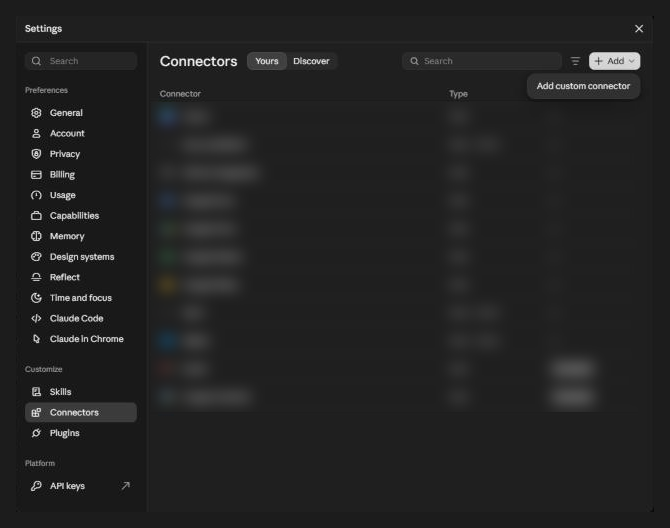
- Click Customize in the left sidebar, then Connectors. (Settings → Connectors also leads here.)
The Connectors page lists the connectors you already have. The + Add button at the top right is where you add a new one:
Step 3: Add the connector
-
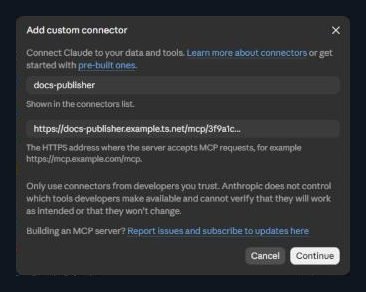
Click + Add, then Add custom connector.
-
Fill in the form:
- Name:
docs-publisher - MCP server URL: paste your personal connector URL from Telegram, all of it, with no spaces.
- Leave any OAuth or advanced settings empty.
- Name:
-
Click Continue, and confirm if Claude asks you to.
Claude shows Connected to docs-publisher, and the connector appears under Yours with seven tools.
Step 4: Choose what Claude may do without asking
Each tool can be set to Allow (Claude uses it freely), Needs approval (Claude asks you each time) or Blocked. Open the connector in your list to change them. A good starting point:
| Tool | What it does | Suggested setting |
|---|---|---|
| List tutorials | Lists the pages on the site | Allow |
| Read tutorial | Reads a page's current text | Allow |
| Publish tutorial | Adds a new page or replaces one | Needs approval |
| Edit tutorial | Changes part of a page | Needs approval |
| Delete tutorial | Removes a page | Needs approval |
| Upload image | Saves a picture from a web link into the site | Needs approval |
| Deploy site | Rebuilds the live site by hand (not usually needed) | Needs approval |
Each tool has three buttons on the right: a tick for Allow, a hand for Needs approval and a circle with a line for Blocked. The dropdown at the top sets all seven at once:
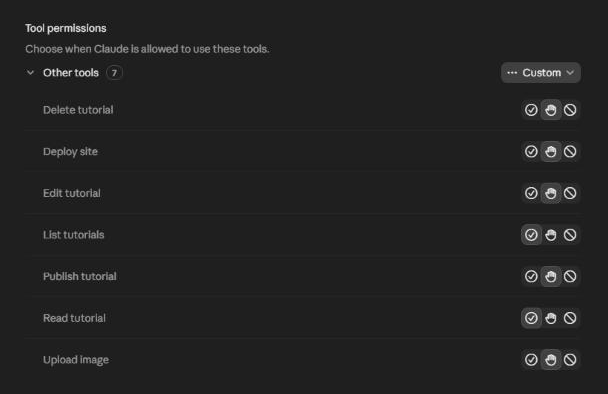
With Needs approval, Claude shows exactly what it's about to send before anything changes, so you can check it. Every change goes live on the site by itself a minute or two later, so this is your chance to review it.
Step 5: Test it
Start a new chat and send:
Using the docs-publisher connector, list the tutorials in my docs.
Claude uses the connector and replies with the site's pages. It should look like this; the list will match the site's current pages, and the connector name is whatever you entered in Step 3:
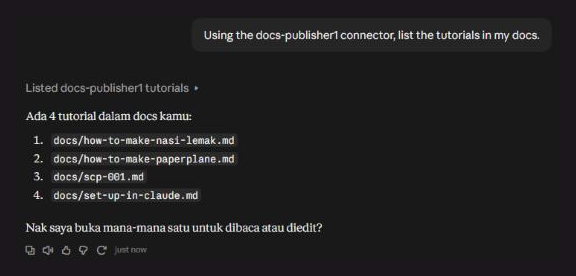
If you see a list like this, you're set up. If you get an error, see Troubleshooting.
Writing and editing tutorials
Ask in plain words. Claude picks the right tool:
- "Write a beginner tutorial on setting up webhooks and publish it as
guides/webhooks." - "Read the nasi lemak tutorial and fix any spelling mistakes."
- "In the FAQ, add a question about password resets."
- "Delete the old
guides/legacy-apitutorial." - "Add this photo to the nasi lemak tutorial: https://upload.wikimedia.org/... and credit its author."
Tips for good results:
- Say where it goes. A path like
guides/webhooksputs the page in theguidessection of the sidebar. - Give Claude your material. Paste notes, steps or screenshots into the chat; Claude writes a better tutorial from real details.
- Read before you approve. With Needs approval, check the text Claude is about to publish.
- Use pictures you may reuse. Upload image saves a copy of the picture on this site. Use your own photos or ones with a free license, and ask Claude to credit the author when the license asks for it.
Troubleshooting
The bot doesn't reply to /access: make sure you pressed Start first. If it still says nothing, ask the site owner to check the bot.
I sent /access but got no URL: the owner hasn't approved you yet. The URL arrives in the same chat as soon as they do.
Claude can't connect, or adding the connector fails: check that you pasted the whole URL, including the long key at the end, with no spaces. If it's still refused, your access may have been turned off; ask the site owner for a new URL.
Claude doesn't use the connector: mention it by name, as in "Using the docs-publisher connector, …". Also check that the connector is switched on for the chat, under the + menu in the message box.
A GitHub error such as "Bad credentials" or "failed (401)": the problem is on the server side. Tell the site owner; there's nothing to fix in your Claude settings.
My change isn't on the live site: wait a minute or two after Claude says the site is being deployed, then refresh. A changed page can stay cached in your browser for a while.
Upload image fails: the link must start with https:// and open the picture itself (a JPEG, PNG, GIF or WebP file up to 5 MB), not a web page that shows it. On Wikimedia Commons, open the file page and copy the link of the image, not the page address.
I shared my URL by mistake: tell the site owner. They can revoke your key and approve you again, which sends you a new URL. Then update the URL on your connector in claude.ai, or remove it and add it again.